Connect power and USB
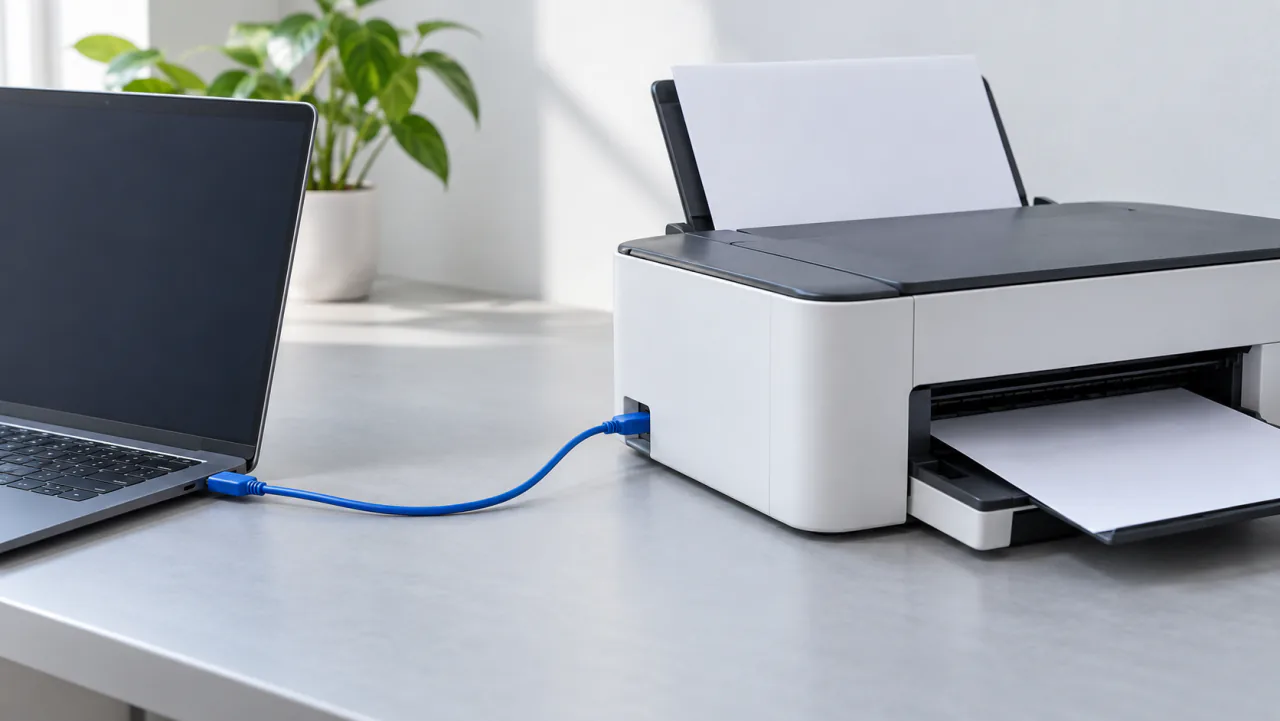
Turn on the printer and connect it to your computer with a USB data cable. If multiple printers are connected, select the one you want to maintain in the app.
These steps apply to supported USB printers. Illustrations reflect the current app; actual values come from your connected device. Service the waste ink pad before resetting.
Turn on the printer and connect it to your computer with a USB data cable. If multiple printers are connected, select the one you want to maintain in the app.
Open PrinterCare and wait for automatic detection. Check the model on screen. Reset is unavailable if the printer is unsupported or its identification results conflict.
The app displays the percentage, maintenance status, and guidance. This step is free and does not require Pro.
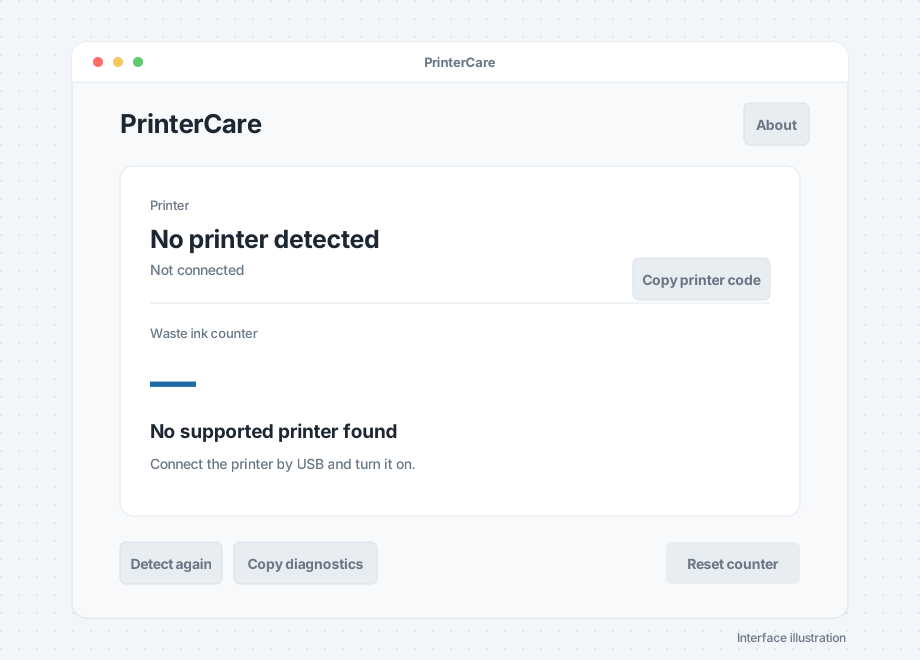 Not connected: the app asks you to check USB and power.
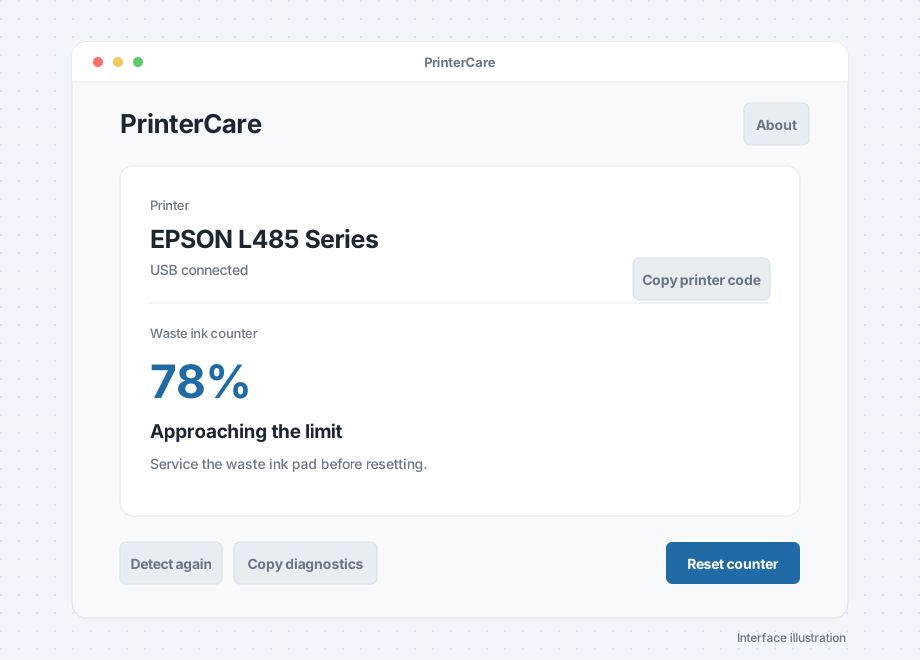 Reading complete: the model, percentage, and status are shown.
Clean, replace, or properly handle the waste ink collection parts. If you are unfamiliar with the printer's construction, consult an experienced repair technician. Do not reset only the number.
Connect each printer you want to license and select “Copy printer code” on the main screen. You can register up to two printers. For Pro licensing questions, email mail@ciliy.com. Pro is not on sale yet; reading remains free.See activation details ↗
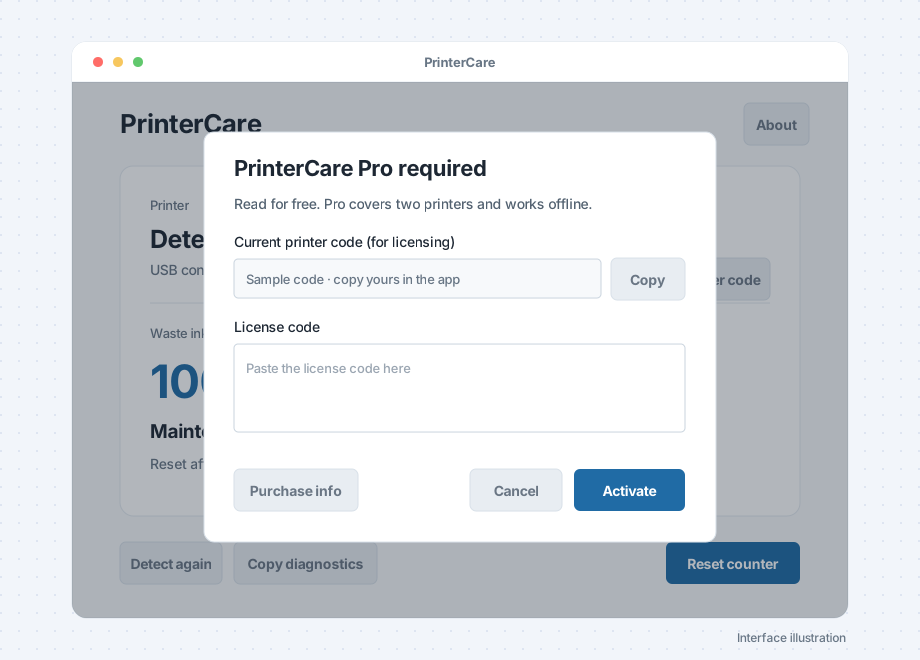 You can copy the printer code on the main screen or in the activation dialog. Enter the license code when you receive it.
Enter the license code, select “Reset waste ink counter,” read the safety notice, and confirm that the waste ink pad has been serviced. Keep power and USB connected during the operation.
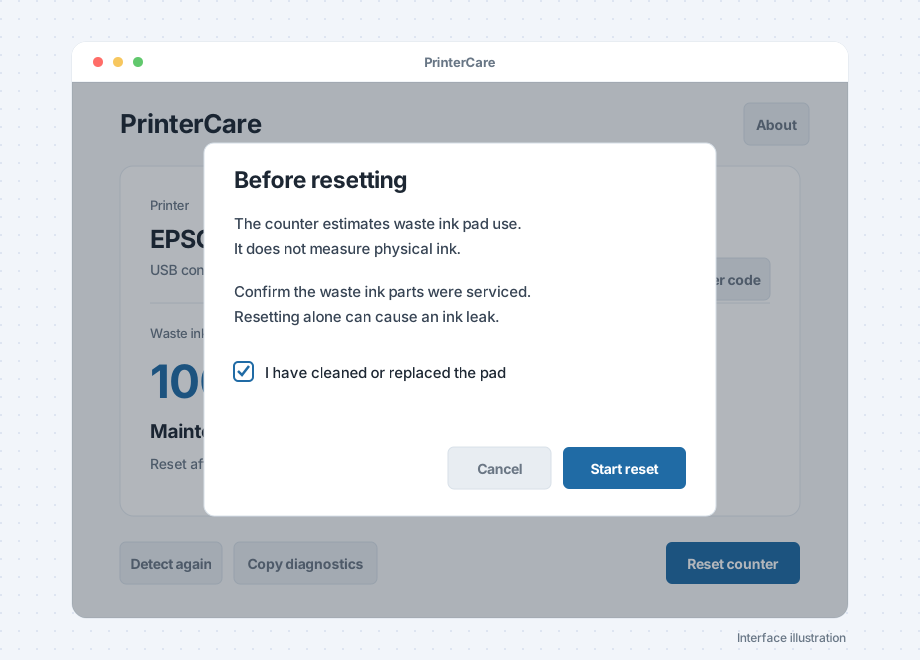 Safety confirmation: you can start only after servicing the pad and checking the box.
The app reads the counter again and shows the actual value. Follow the on-screen instruction to turn the printer off, wait about five seconds, and turn it back on.
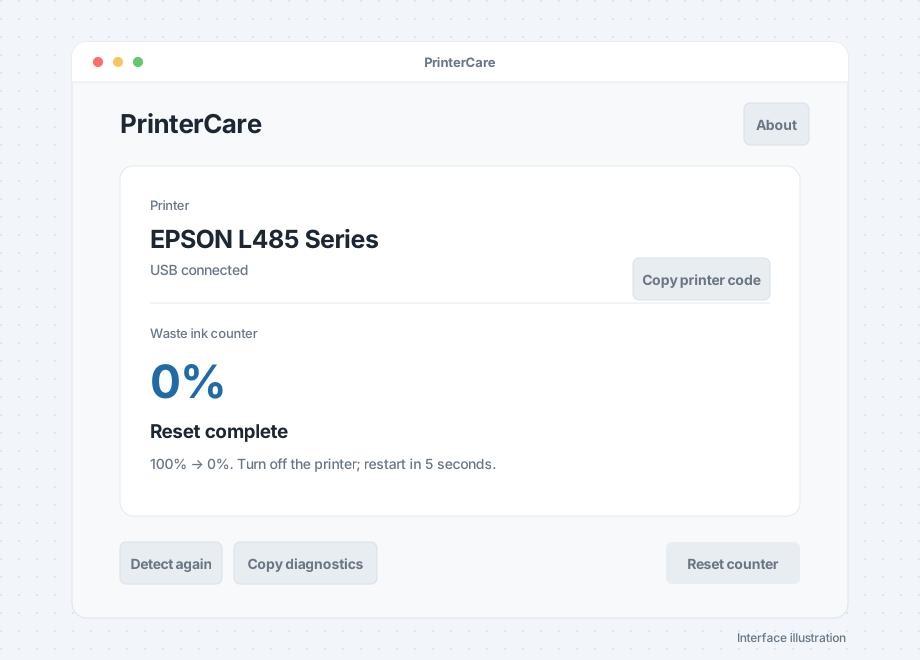 Verification: the app displays the actual reading, then asks you to restart the printer.
If power or USB disconnects, or communication times out during reset, detect the printer again first. Do not repeatedly attempt writes.
Make sure the printer is on and the cable is secure. Try connecting directly to a USB port on the computer.
Quit other programs using the printer, then detect it again in PrinterCare.
Turn the printer off and back on. If reading still fails, copy the diagnostic information to retain the error code.