Detect your printer automatically
Connect a USB printer to see its model, connection, and support status. If identification results conflict, the app stops before writing to the device.Search supported models ↗
Connect a supported Epson USB printer to read its waste ink counter for free and decide whether service is needed. After cleaning or replacing the waste ink pad, follow clear steps to reset the counter safely.
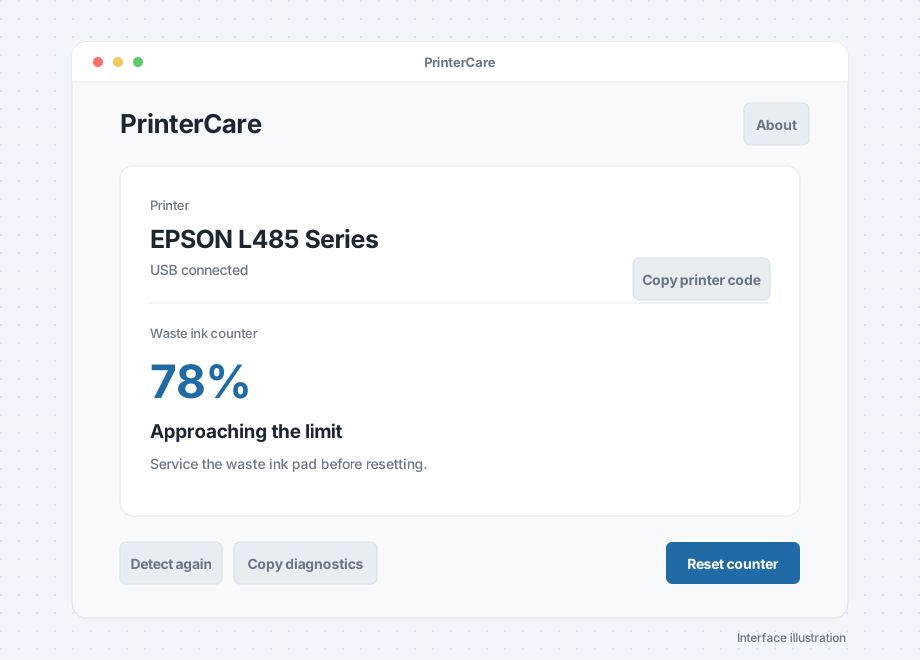 Interface illustration
You do not need to understand device protocols or command lines. The Mac and Windows apps use the system language to display English or Chinese and keep the essential information on screen.
Connect a USB printer to see its model, connection, and support status. If identification results conflict, the app stops before writing to the device.Search supported models ↗
See the waste ink counter as a percentage with plain-language maintenance guidance. Reading the counter is free.
Pro requires you to confirm the waste ink collection parts have been cleaned or replaced, then reads the result again. One license code covers up to two printers.Learn about Pro licensing ↗
The printer itself provides the status that matters. PrinterCare brings its model, waste ink counter, and current guidance together so you can choose the next step.
See how it works ↗The app shows real readings and asks you to confirm waste ink pad service before resetting. These are two key screens in the process.
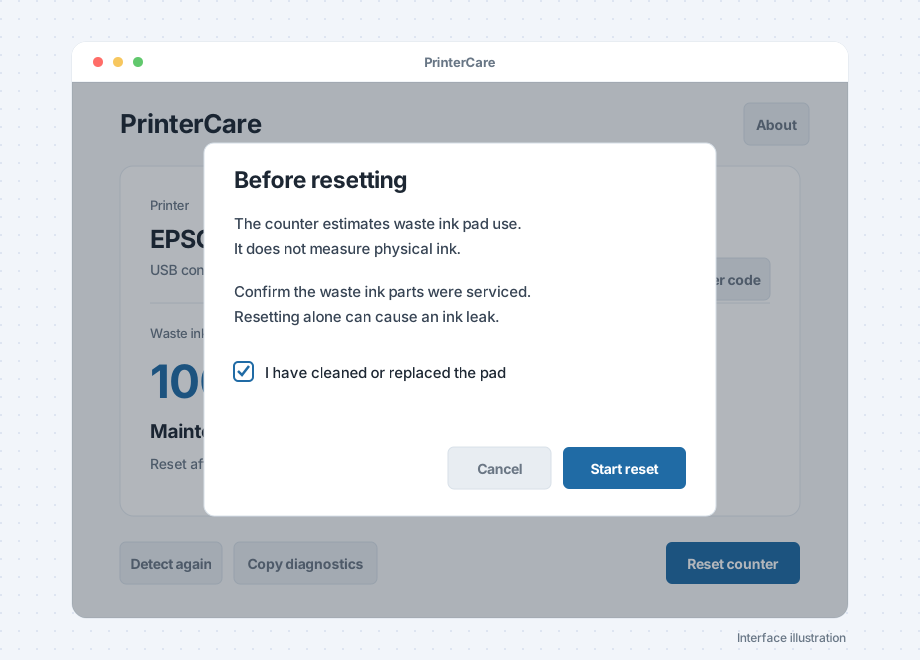
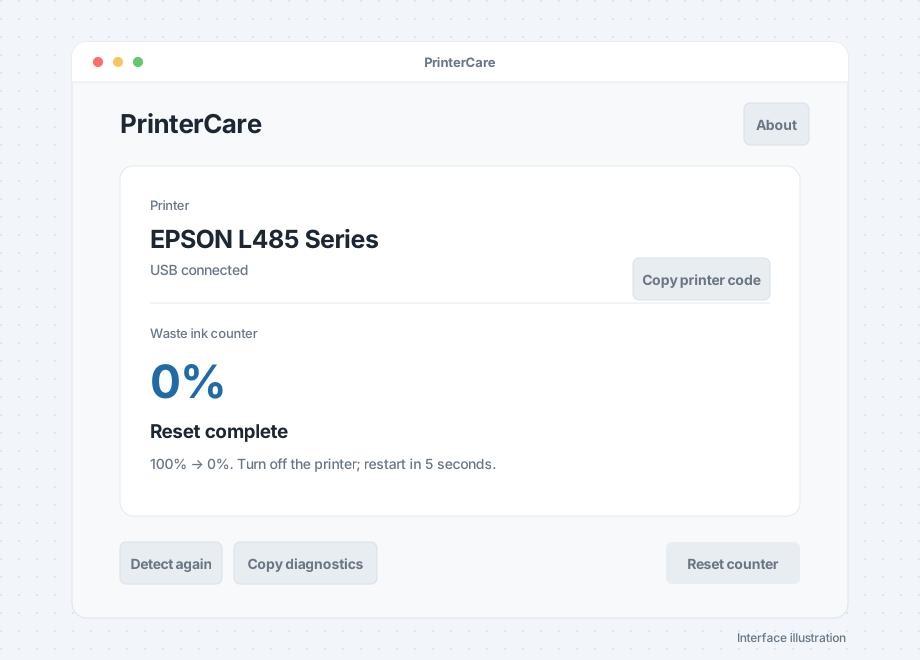
Illustrations are based on the current desktop app. Actual values depend on the connected printer.
The counter is a maintenance reminder. Resetting a number does not remove accumulated waste ink.
Reset is available only when the model is supported and consistent and the connection is sound. You must also confirm waste ink pad service first.
See the safety steps ↗